|
Management - Object Relinking/Reference Manager |
It's become a common feature with software samplers to store a Multisampled Instrument as a small file, defining the mapping and real-time parameters of 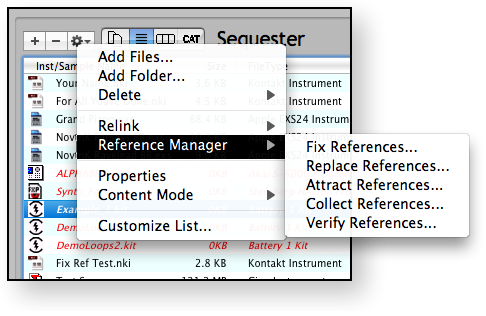 the Instrument, and storing the samples as industry-standard WAVE or AIFF files. Commonly the small file - in Kontakt’s case, the .nki - contains a absolute or relative Path to the sample, so when the sampler engine parses the file, it locates the external sample file and loads it.
The advantage to this is so a Instrument can be edited easily and saved quickly without any maintenance of the samples. The disadvantage is that it's easy to lose track of where the samples are. If you use absolute paths, and you move the samples - the sample files have to be relinked. If you use relative paths, and you move either the samples or instruments in relation to each other, again you have to relink. Add to that the hassle of having duplicate samples - what samples do you relink to?
This is where the Kontakt Assistant™ Reference Manager comes into use. Reference Manager has several different types of relinking techniques it employs:
| Fix References | Fixes any bad links. Scans an Bank/Instrument, and verifies the links. On first detection of a bad link, Kontakt Assistant™ asks you to form a catalog of files from a folder of your choosing. It then uses that catalog to repair any further bad links. |
| Replace References | Changes references based on your criteria. Brings up immediately a Search-Replace-type of dialog. It allows you to textually change the reference files names (Name and/or Path, etc.). You also have the ability to Fix References during or after this process. |
| Attract References | Fixes bad links by moving the files instead of changing the references. (Opposite of Fix References.) Scans an Bank/Instrument, and verifies the links. On first detection of a bad link, Kontakt Assistant™ asks you to form a catalog of files from a folder of your choosing. It then uses that catalog to repair any further bad links by moving the files to the location indicated by the source file. |
| Collect References | Takes links (good or bad) and moves/copies them to a new user-defined location. If any links are bad, Kontakt Assistant™ does the Fix References operation during the process. You can also elect to move the control file as well. This function is helpful for weeding out unused samples or simply setting aside a control file/sample files for individual checking or use. |
| Verify References | Creates a report, in the form of a text file or a screen displayed chart, of good and bad links. Scans an Bank/Instrument, and lists the links and whether they are good or bad. |
It's important to keep in mind that a Mac has an additional facility, related to the capability of the HFS disk format, that helps in object relinking. The HFS disk does not categorize a file by it's location; rather, it lists it by a number. When you move a file, it simply links it to a different folder. Kontakt Assistant™ takes advantage of this capability and uses it to dramatically speed up relinking - it doesn't have to search, by using the HFS disk it already knows where the file went to.
Kontakt Assistant™ usually uses the Sample or Instrument File Name, without the extension, as a hinge point. So if a file references "Trumpet C4.wav", and it doesn't find it but it does find "Trumpet C4.aif", Kontakt Assistant™ will fix the reference using the AIFF file instead. Or, you can instruct Kontakt Assistant™ to, instead of fixing the reference, you can convert the sample file to a WAVE file and write a new file.
All Relinking options are in the Preferences dialog under the Object Relinking tab.