Kontakt Assistant™ Preferences
|
Kontakt Assistant™ Preferences |
The Preferences dialog is viewed by clicking on the Application Menu-Preferences (Mac), or File-Options... (Windows) top menu.
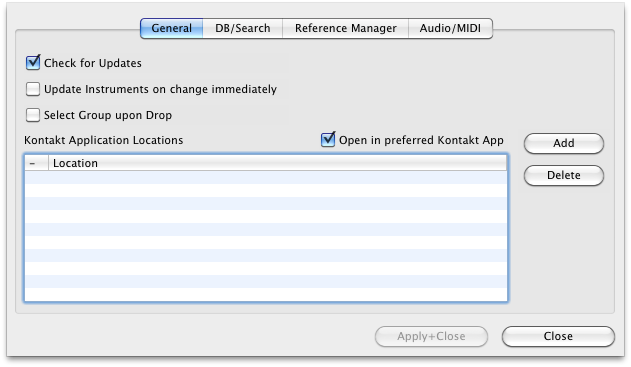
Show Results immediately while typing Search
When checked, Kontakt Assistant™ tries to make the results known as you type each character. This can stress the system a little. When unchecked, you need to hit ENTER for the search results to be checked.
Search Conditions::Exact
The exact textual needs to match the destination.
Search Conditions::Contains
The search text needs to match the destination if the destination contains the text desired.
Search Conditions::Starts With
The search text needs to match the destination if the destination starts with the text desired.
Search Conditions::Ends With
The search text needs to match the destination if the destination ends with the text desired.
Update Database::At Close
The Database files are updated only when you close the window you are working on the database on. If the contents have been changed, Kontakt Assistant™ will prompt you.
Update Database::Immediately
The Database files are updated immediately, when you make a change.
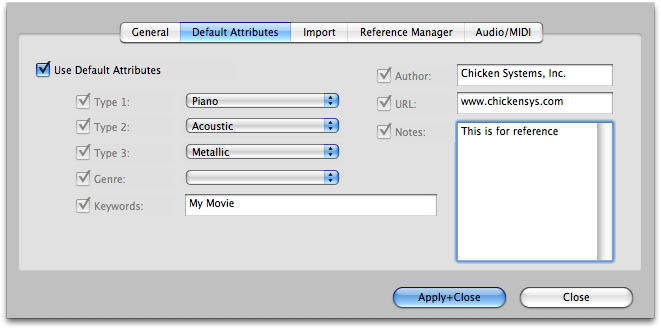
When checked, Kontakt Assistant™ will use this set of Attributes for every entry that gets added, with the exception of files that already have database elements in them (Kontakt or Structure, for example).
Checking each attribute determines whether they will be included or not.
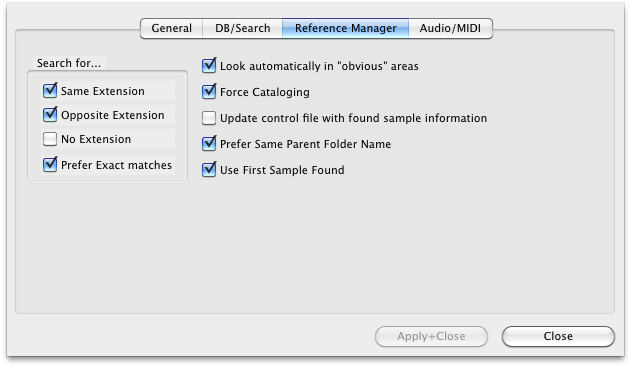
These options relate to the Reference Manager, accessible form the Reference Manager contextual menu option.
Search For::Same Extension
When a link is being re referenced, Kontakt Assistant™ will look for the same sample name if it has the same extension (eg. .wav or .aif).
Search For::Opposite Extension
When a link is being re referenced, Kontakt Assistant™ will look for the same sample name if it has the opposite extension (if .wav, then .aif, or if .aif, then .wav).
Search For::No Extension
When a link is being re referenced, Kontakt Assistant™ will look for the same sample name if it has the no extension (for example, the file "TrumpetC4" will be included for "TrumpetC4.wav").
Search For::Prefer Exact Matches
Reference Manager favors two folders before checking anything else - the same folder as the source, and the folder alongside the source file that is named "[source name] Samples". Checking this option tells Kontakt Assistant™ not to consider these folders.
Look automatically in "obvious" areas
Reference Manager favors two folders before checking anything else - the same folder as the source, and the folder alongside the source file that is named "[source name] Samples". Checking this option tells Kontakt Assistant™ to consider these folders.
Force Cataloging
When fixing references, IM waits until it finds a bad link before it asks you to catalog. When this option is checked, Kontakt Assistant™ automatically asks you to create a catalog.
Update control file with sample information
Often a control file stores it's own looping and tuning information. Usually the information found in a sample file matches this, but often it does not. Checking this option tells Kontakt Assistant™ to write this information into the control file.
Prefer Same Parent Folder Name
When this option is checked, Kontakt Assistant™ will favor folders that have the same Parent Folder name as the bad link had.
These options relate to the Reference Manager, accessible form the Reference Manager contextual menu option.
Search For::Same Extension
When a link is being re referenced, Kontakt Assistant™ will look for the same sample name if it has the same extension (eg. .wav or .aif).
Search For::Opposite Extension
When a link is being re referenced, Kontakt Assistant™ will look for the same sample name if it has the opposite extension (if .wav, then .aif, or if .aif, then .wav).
Search For::No Extension
When a link is being re referenced, Kontakt Assistant™ will look for the same sample name if it has the no extension (for example, the file "TrumpetC4" will be included for "TrumpetC4.wav").
Search For::Prefer Exact Matches
Reference Manager favors two folders before checking anything else - the same folder as the source, and the folder alongside the source file that is named "[source name] Samples". Checking this option tells Kontakt Assistant™ not to consider these folders.
Look automatically in "obvious" areas
Reference Manager favors two folders before checking anything else - the same folder as the source, and the folder alongside the source file that is named "[source name] Samples". Checking this option tells Kontakt Assistant™ to consider these folders.
Force Cataloging
When fixing references, IM waits until it finds a bad link before it asks you to catalog. When this option is checked, Kontakt Assistant™ automatically asks you to create a catalog.
Update control file with sample information
Often a control file stores it's own looping and tuning information. Usually the information found in a sample file matches this, but often it does not. Checking this option tells Kontakt Assistant™ to write this information into the control file.
Prefer Same Parent Folder Name
When this option is checked, Kontakt Assistant™ will favor folders that have the same Parent Folder name as the bad link had.
Use FIrst Sample Found
There can be many instances where there will be more then one file with the same name. Checking this option forces Kontakt Assistant™ to use the first sample it finds and not look any further.
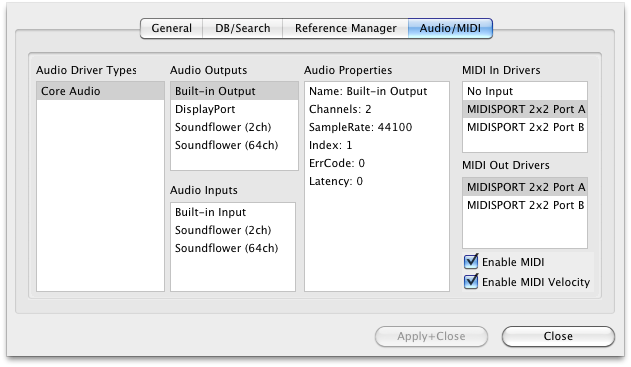
Audio Driver Types
These are the Sound Driver types on your system. Selecting one shows the Audio Outputs and Audio Inputs on the lists to the right.
Audio Outputs
These are the outputs on your system for the selected Audio Driver Type. Selecting one selects the audio output for your app.
Audio Inputs
These are the inputs on your system for the selected Audio Driver Type. Selecting one selects the audio input for your app.
Audio Properties
Shows the Properties of the Output or Input that is selected on the left.
MIDI In Drivers
Allows you to select the current MIDI In driver that will drive the player in Kontakt Assistant™.
MIDI Out Drivers
Allows you to select the current MIDI Out driver that your application will send MIDI out from.
Enable MIDI
Enables MIDI communication.
Enable MIDI Velocity
When unchecked, all MIDI notes coming in will be 127 in value.