|
Reference Manager - Replace References |
The Replace References function and the accompanying dialog is for textually and programatically editing the object references in your Instrument file and optionally sample file names.
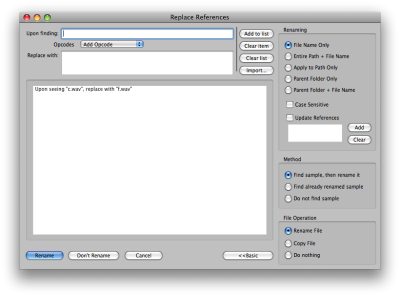 The general task is to compile a list of “find this, replace with that” entries. Enter in a set and click the Add To List button. All entries are considered sequentially. You can remove entries or clear the list. The Import button allows syou to import a .txt file with entries, comma or tab delimited.
Find and Replace
The Opcodes popup menu puts the selected preset opcode in the “Upon finding...” box. They are defined below.
| <rootkey> | Adds the rootkey name (i.e. " C4") to the end of the existing object name (before the extension) | ||||||||||||||||||||||||||||
| <replace> | Replaces the entire object name with the new one | ||||||||||||||||||||||||||||
| <instname> | |||||||||||||||||||||||||||||
| <groupname> | |||||||||||||||||||||||||||||
| <add> | Adds the Replace With text to the begining of the existing object name | ||||||||||||||||||||||||||||
| <delete> | Deletes the Replace With text from the existing object name, if the text exists | ||||||||||||||||||||||||||||
| <delete0:0> | Deletes text at the position after 'insert" ("0" means the first character), and for the amt of chars after the colon | ||||||||||||||||||||||||||||
| <deletebeforeext0> | Deletes "x" amount of characters before the "dot" before the file extension. | ||||||||||||||||||||||||||||
| <insert0> | Inserts the Replace With text at the position stipulated after the 'insert". "0" means the first character. | ||||||||||||||||||||||||||||
| <mapformat> | This parses the control file and rename all samples with the syntax below and updates the control file. If you leave the REPLACE WITH field blank, this is the syntax: You can customize the function with your own syntax.
In Replace With, enter the syntax codes. It creates the new custom name in the order you put the indicators. You must surround each with "tags" <>
|
When you are ready, click Rename. To cancel, click Cancel. If you don’t want to Rename, but want to go on anyway, click Don’t Rename.
Advanced
Clicking the Advanced>> button reveals more paramters to tweak exactly how you want Replace References to work.
Renaming
You can choose which part of the path you want to take under consideration. Options are:
| File Name Only | Entire Path + File Name | Path Only |
| Parent Folder Only | Parent Folder + File Name |
You can also choose whether the search will be case sensitive or not.
Update References
Method
Sometimes you want to affect the external sample file names, sometimes you don’t. Method allows different ways of dealing with the external file themselves.
| Find Sample, then rename it | Renames the originally referenced sample |
| Find already renamed sample | Finds the aleady-named sample and fixes the path to point to it |
| Do not find sample | Just textually rewrites the reference |
File Operation
This is closely tied with Method. You can Rename the file, or Copy it, or Do Nothing to nullify the operation.
Example
We worked on several ProjectSAM libraries. Often they would use the same programs for different mic samples and simply change the samples. Their sample names would be the same except for the single lowercase letter before the .wav extension. We used Replace References to perform this.
We added an entry “Upon finding c.wav, replace with f.wav”, and under method we would choose Do Not Find Sample. That would rename the references. Then we would do a Fix References to point them to the different location. Very handy!